Here is the solution for your problem,
1.go to start menu.
2.run command
3.regedit in run command.
4.HKEY_CURRENT_USER\\software\microsoft\windows\currentvershion\explorer\flexts\
5.search for .lnk ext.
6.delete hole .lnk key or delete the user choice key on that.
7 just restart
Tuesday, 12 January 2016

Monday, 18 May 2015
Creating an Email Group or Distrubution List in Outlook 2007
Creating Groups
Creating your own Groups of email addresses is a handy function, as it allows you to send email to a pre-defined collection of people easily, without having to remember their names or email addresses. Whether you are on a server at work, trying to define a group of people to receive regular reports, or you want to set up a group at home to forward all your jokes to, this can save you a ton of time in the long run.
Part 1 – Creating your own Groups
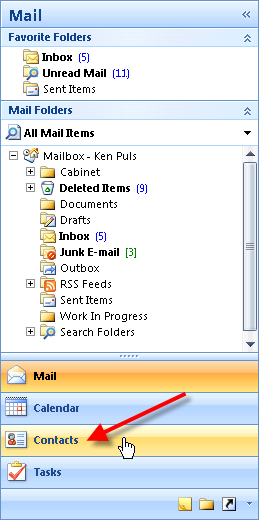
If you are in the email view, click the Contacts button in the left navigation bar on your screen:
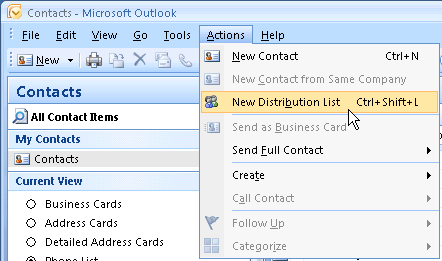
Now, you should be in the Contacts view. Choose Actions then New Distribution List (or press Ctrl+Shift+L)
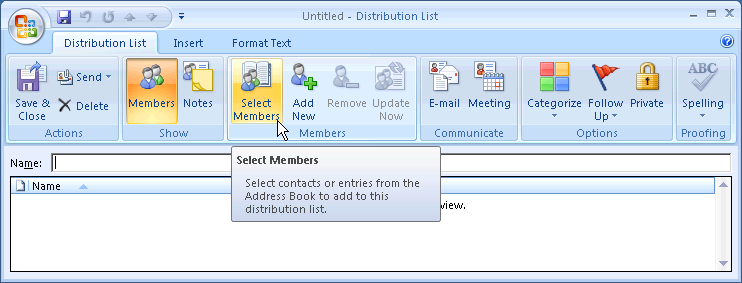
Next, you’ll want to choose Select Members from the Members group on the Ribbon.
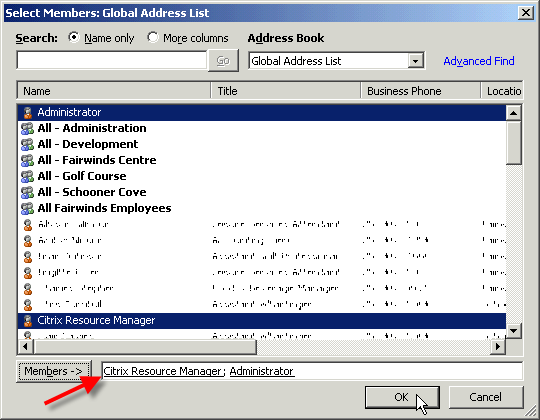
I’ve doubled clicked both Administrator and Citrix Resource Manager accounts, at which point they show in the “Members ->” area at the bottom of the screen. (Pick someone you actually want to email.) Once you’ve got a nice list of people that you’d like to include in your group, click OK.
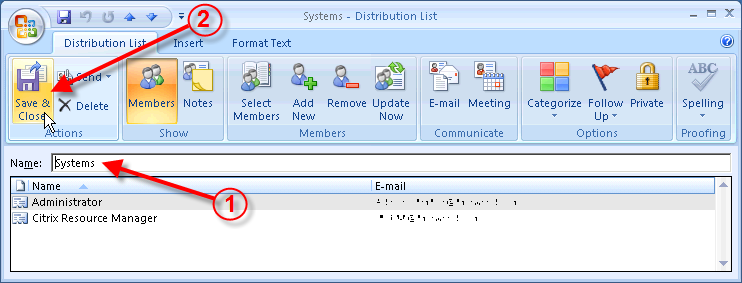
Next, give your group a name that makes sense, and the click the Save & Close button on the Actions group.
Part 2 – Emailing Your Group
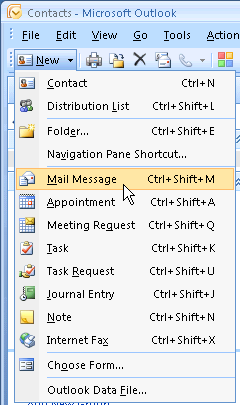
Okay, now the useful part… let’s send our group an email. From the New menu, choose Mail Message (or just press Ctrl+Shift+M to create a new mail message.)
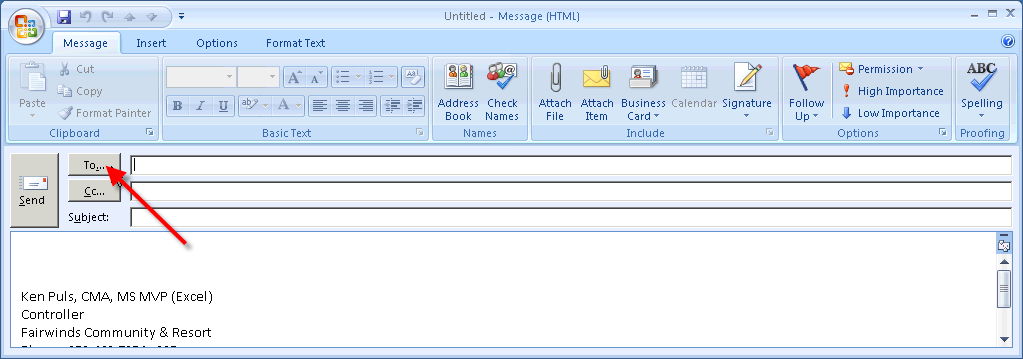
In the email message, click the To… button:
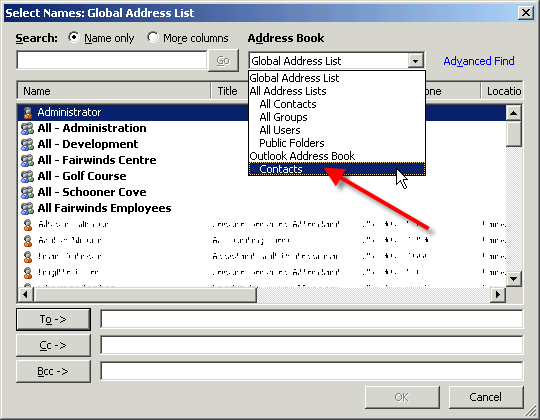
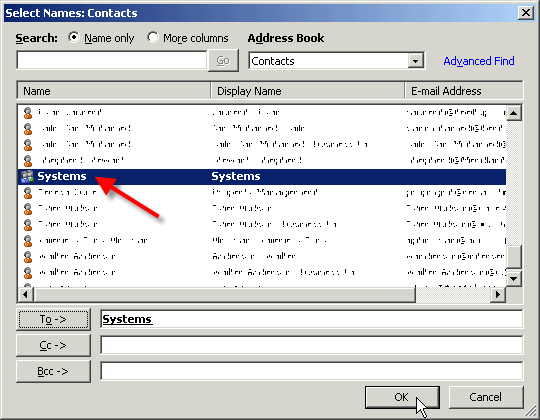
The secret to finding your new group is to click the drop down arrow and choose the address book that holds the group you created. (In this case Outlook Contacts instead of our Global Address List):
And there it is! Double click it to select it, then click OK.
You’ll notice that your email is now addressed to the group. Now… do you remember who you put in the group? Okay, you probably do at this stage, but as time goes on, you may forget and want to verify it. (Or maybe it is your joke list, and you want to forward it to everyone except the person who just emailed the joke to you.) Do you see the little + sign just in front of the group name?
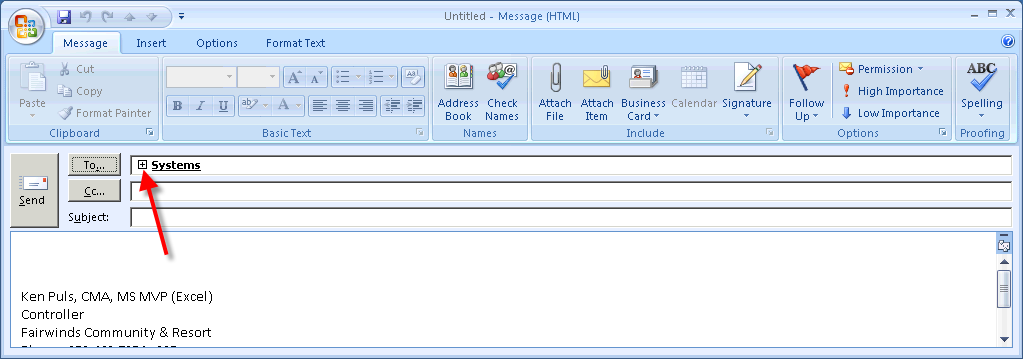
Go ahead and give it a click…
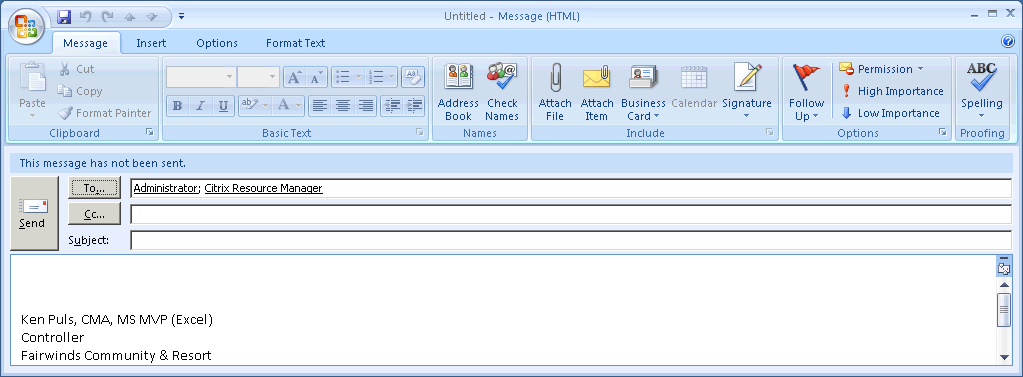
The email group automatically expands to show you the names of all of the members! You’ll never wonder who you’re sending email to again! And if you want to remove one, just highlight the name and press the delete key. It's just that easy!
Part 3 - Editing existing groups
Assume now that months have gone by, and you want to make a change to your group… either adding or removing someone. How do you do it? The first step is to located the group in your contacts list. Once you’ve found it, right click it, and choose Open.
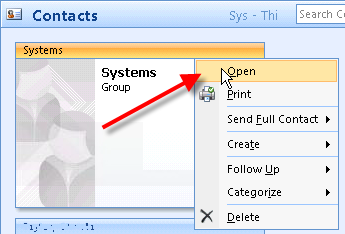
Your "Distribution List" will open, and show who the members are.
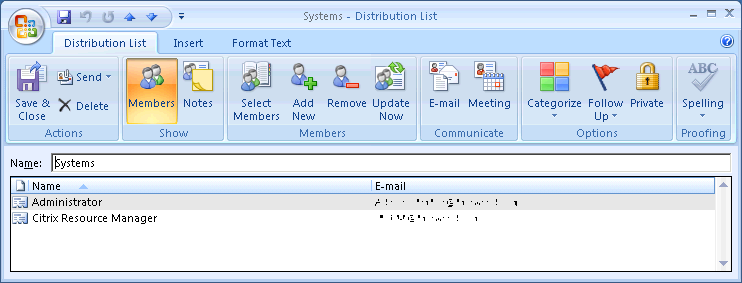
At this point, here are just some of the options you have:
Add Members:
Creating your own Groups of email addresses is a handy function, as it allows you to send email to a pre-defined collection of people easily, without having to remember their names or email addresses. Whether you are on a server at work, trying to define a group of people to receive regular reports, or you want to set up a group at home to forward all your jokes to, this can save you a ton of time in the long run.
Part 1 – Creating your own Groups
If you are in the email view, click the Contacts button in the left navigation bar on your screen:
Now, you should be in the Contacts view. Choose Actions then New Distribution List (or press Ctrl+Shift+L)
Next, you’ll want to choose Select Members from the Members group on the Ribbon.
I’ve doubled clicked both Administrator and Citrix Resource Manager accounts, at which point they show in the “Members ->” area at the bottom of the screen. (Pick someone you actually want to email.) Once you’ve got a nice list of people that you’d like to include in your group, click OK.
Next, give your group a name that makes sense, and the click the Save & Close button on the Actions group.
Part 2 – Emailing Your Group
Okay, now the useful part… let’s send our group an email. From the New menu, choose Mail Message (or just press Ctrl+Shift+M to create a new mail message.)
In the email message, click the To… button:
The secret to finding your new group is to click the drop down arrow and choose the address book that holds the group you created. (In this case Outlook Contacts instead of our Global Address List):
And there it is! Double click it to select it, then click OK.
You’ll notice that your email is now addressed to the group. Now… do you remember who you put in the group? Okay, you probably do at this stage, but as time goes on, you may forget and want to verify it. (Or maybe it is your joke list, and you want to forward it to everyone except the person who just emailed the joke to you.) Do you see the little + sign just in front of the group name?
Go ahead and give it a click…
The email group automatically expands to show you the names of all of the members! You’ll never wonder who you’re sending email to again! And if you want to remove one, just highlight the name and press the delete key. It's just that easy!
Part 3 - Editing existing groups
Assume now that months have gone by, and you want to make a change to your group… either adding or removing someone. How do you do it? The first step is to located the group in your contacts list. Once you’ve found it, right click it, and choose Open.
Your "Distribution List" will open, and show who the members are.
At this point, here are just some of the options you have:
Add Members:
- Click the Select Members button
- Select them from the address book(s)
- Click OK
- Click Save & Close
- Click on the users name
- Click the Remove button on the [/b]Members[/b] group
- Click Save & Close
- Change the Name field
- Click Save & Close
- Click the Delete button in the Actions group
Friday, 16 January 2015
Fix: The Group Policy Client Service Failed The Logon In Windows 8
In Windows 8, you can face different types of issues while logging in to your user account. Today in this article we’ll discuss about one of these errors. It is about the failure of Group Policy Client service while logging into Windows 8 using standard user account. When we tried to log on using the administrator account on the same system, it lets us to enter in. Here is the screenshot of error we just received on the issued computer:

As you can see in the above error image, there is no help about this issue offered. You just have the OK button there which links you nowhere. So how do we fix this issue? Well as usual, the fix for this problem follows the procedure to modify registry entries. Since you’re able to log in as the administrator, you can follow the steps mentioned below, thus you can consequently fix the issue and then log in, as the standard user account as well.

2. Navigate to the following location:

3. You don’t need to modify anything under the key mentioned above. Just make sure that it is intact there properly. Next, you should locate this key:

4. Now create a multi-string value in the right pane of this location and name it as GPSvcGroup and associate the Value data GPSvc with it. Moving on create a new sub key to the Svchost key (HKEY_LOCAL_MACHINE\SOFTWARE\Microsoft\Windows NT\CurrentVersion\Svchost) and name it as GPSvcGroup.

5. Finally, came to the right pane of this so created sub key GPSvcGroup and create following two DWORDs with corresponding Value data:
AuthenticationCapabilities – 12320 (Use Decimal base)
CoInitializeSecurityParam – 1
Now close the Registry Editor and reboot and verify the status of the issue. Your problem should be fixed by now.
Hope this helps!
As you can see in the above error image, there is no help about this issue offered. You just have the OK button there which links you nowhere. So how do we fix this issue? Well as usual, the fix for this problem follows the procedure to modify registry entries. Since you’re able to log in as the administrator, you can follow the steps mentioned below, thus you can consequently fix the issue and then log in, as the standard user account as well.
The Group Policy Client Service Failed The Logon
1. Press Windows Key + R combination, type put Regedt32.exe in Run dialog box and hit Enter to open the Registry Editor.2. Navigate to the following location:
HKEY_LOCAL_MACHINE\SYSTEM\CurrentControlSet\Services\gpsvc
3. You don’t need to modify anything under the key mentioned above. Just make sure that it is intact there properly. Next, you should locate this key:
HKEY_LOCAL_MACHINE\SOFTWARE\Microsoft\Windows NT\CurrentVersion\Svchost
4. Now create a multi-string value in the right pane of this location and name it as GPSvcGroup and associate the Value data GPSvc with it. Moving on create a new sub key to the Svchost key (HKEY_LOCAL_MACHINE\SOFTWARE\Microsoft\Windows NT\CurrentVersion\Svchost) and name it as GPSvcGroup.
5. Finally, came to the right pane of this so created sub key GPSvcGroup and create following two DWORDs with corresponding Value data:
AuthenticationCapabilities – 12320 (Use Decimal base)
CoInitializeSecurityParam – 1
Now close the Registry Editor and reboot and verify the status of the issue. Your problem should be fixed by now.
Hope this helps!
Monday, 8 December 2014
The 30 skills every IT person should have
An IT manager's guide on how to be better at what you do, no matter how experienced you are.
So in the spirit of personal growth, I developed a list of skills every IT person should have.
1. Be able to fix basic PC issues. These can be how to map a printer, back up files, or add a network card. You don't need to be an expert and understand how to overclock a CPU or hack the registry, but if you work in IT, people expect you to be able to do some things.
2. Work the help desk. Everyone, from the CIO to the senior architect, should be able to sit down at the help desk and answer the phones. Not only will you gain a new appreciation for the folks on the phones, but you will also teach them more about your process and avoid escalations in the future.
3. Do public speaking. At least once, you should present a topic to your peers. It can be as simple as a five-minute tutorial on how IM works, but being able to explain something and being comfortable enough to talk in front of a crowd is a skill you need to have. If you are nervous, partner with someone who is good at it, or do a roundtable. This way, if you get flustered, someone is there to cover for you.
4. Train someone. The best way to learn is to teach.
5. Listen more than you speak. I very rarely say something I didn't already know, but I often hear other people say things and think, "Darn, I wish I knew that last week."
6. Know basic networking. Whether you are a network engineer, a help desk technician, a business analyst, or a system administrator, you need to understand how networks work and simple troubleshooting. You should understand DNS and how to check it, as well as how to ping and trace-route machines.
7. Know basic system administration. Understand file permissions, access levels, and why machines talk to the domain controllers. You don't need to be an expert, but knowing the basics will avoid many headaches down the road.
9. Know the difference between latency and bandwidth. Latency is the amount of time to get a packet back and forth; bandwidth is the maximum amount of data a link can carry. They are related, but different. A link with high-bandwidth utilization can cause latency to go higher, but if the link isn't full, adding more bandwidth can't reduce latency.
10. Script. Everyone should be able to throw a script together to get quick results. That doesn't mean you're a programmer. Real programmers put in error messages, look for abnormal behavior, and document. You don't need to do that, but you should be able to put something together to remove lines, send e-mail, or copy files.
11. Back up. Before you do anything, for your own sake, back it up.
12. Test backups. If you haven't tested restoring it, it isn't really there. Trust me.
13. Document. None of the rest of us wants to have to figure out what you did. Write it down and put it in a location everyone can find. Even if it's obvious what you did or why you did it, write it down.
14. Read "The Cuckoo's Egg." I don't get a cut from Cliff Stoll (the author), but this is probably the best security book there is -- not because it is so technical, but because it isn't.
15. Work all night on a team project. No one likes to do this, but it's part of IT. Working through a hell project that requires an all-nighter to resolve stinks, but it builds very useful camaraderie by the time it is done.
16. Run cable. It looks easy, but it isn't. Plus, you will understand why installing a new server doesn't really take five minutes -- unless, of course, you just plug in both ends and let the cable fall all over the place. Don't do that -- do it right. Label all the cables (yes, both ends), and dress them nice and neat. This will save time when there's a problem because you'll be able to see what goes where.
17. You should know some energy rules of thumb. For example: A device consuming 3.5kW of electricity requires a ton of cooling to compensate for the heat. And I really do mean a ton, not merely "a lot." Note that 3.5kW is roughly what 15 to 20 fairly new 1U and 2U servers consume. One ton of cooling requires three 10-inch-round ducts to handle the air; 30 tons of air requires a duct measuring 80 by 20 inches. Thirty tons of air is a considerable amount.
18. Manage at least one project. This way, the next time the project manager asks you for a status, you'll understand why. Ideally, you will have already sent the status report because you knew it would be asked for.
19. Understand operating costs versus capital projects. Operating costs are the costs to run the business. Capital equipment is made of assets that can have their cost spread over a time period -- say, 36 months. Operating costs are sometimes better, sometimes worse. Know which one is better -- it can make a difference between a yes and no.
20. Learn the business processes. Being able to spot improvements in the way the business is run is a great technique for gaining points. You don't need to use fancy tools; just asking a few questions and using common sense will serve you well.
21. Don't be afraid to debate something you know is wrong. But also know when to stop arguing. It's a fine line between having a good idea and being a pain in the ass.
22. If you have to go to your boss with a problem, make sure you have at least one solution.
23. There is no such thing as a dumb question, so ask it ... once. Then write down the answer so that you don't have to ask it again. If you ask the same person the same question more than twice, you're an idiot (in their eyes).
24. Even if it takes you twice as long to figure something out on your own versus asking someone else, take the time to do it yourself. You'll remember it longer. If it takes more than twice as long, ask.
25. Learn how to speak without using acronyms.
26. IT managers: Listen to your people. They know more than you. If not, get rid of them and hire smarter people. If you think you are the smartest one, resign.
27. IT managers: If you know the answer, ask the right questions for someone else to get the solution; don't just give the answer. This is hard when you know what will bring the system back up quickly and everyone in the company is waiting for it, but it will pay off in the long run. After all, you won't always be available.
28. IT managers: The first time someone does something wrong, it's not a mistake -- it's a learning experience. The next time, though, give them hell. And remember: Every day is a chance for an employee to learn something else. Make sure they learn something valuable versus learning there's a better job out there.
29. IT managers: Always give people more work than you think they can handle. People will say you are unrealistic, but everyone needs something to complain about anyway, so make it easy. Plus, there's nothing worse than looking at the clock at 2 p.m. and thinking, "I've got nothing to do, but can't leave." This way, your employees won't have that dilemma.
30. IT managers: Square pegs go in square holes. If someone works well in a team but not so effectively on their own, keep them as part of a team.
Sunday, 30 November 2014
What Files Can I Safely Delete?
| portant: Before working on serious problems on your PC, backup as many files as you can, even if only to diskette. |
| Running out of space on the hard drive is something almost everyone runs into. One of the best tools to use to find and delete specific files is Search on the Start Menu. (For older versions of Windows, use Windows Explorer, located on your Start Menu, under Programs. You can use the TOOLS option to Find (search) your hard drive for specific files). I'll show an example of using Search in the tips. |  | |
Here's a common list of files to delete:
Clean out the Windows\Temp directory. Delete all files and folders in thec:\windows\temp directory. It's best to reboot after cleaning out all the files you are able to delete. (Some files can't be deleted because they are locked while your system is running).Remove old registry hive backups. Get rid of backup copies of yoursystem.dat and user.dat file in your c:\windows folder made by other programs (for example system.nu3 and user.nu3). Look for large files about the same size as your system.dat/user.dat file. (Don't delete the original .datversions, or the system.ini file!) Search your system for big files. Use the "Start Menu Search > For Files or Folders... ( or Windows Explorer TOOLS option on older versions of windows):
You may also use this search feature ("for files or folders named") to easily search your entire system for the various safe file types to delete! (For more information,see below: you'll be searching for files like *.bak, *.001, *.log, *.~??, *.old, etc). Delete program temporary files. Take off any file on your drive with a .tmpextension or a tilde (~) as the first character of the extension (for examplemyfile.~xx). Execute a search for a filename of *.~?? to find these files. Clean out backup and log files. Look for backup and log files with extensions such as *.old, *.bak, *.log, *.000, *.001, *.002, etc. Any file with these extensions can be safely deleted. Don't believe everything you read. Be wary of "technical" pages and tips that tell you it's safe to delete any .wav, .hlp, .jpg, .clp, .gif (and a few other extensions). I recommend you do not delete these file extensions. Going through your PC and erasing these files has the potential to cause lot problems. These well-meaning "tips" mean the files are "safe" to delete only in a technical sense (these file types typically aren't tied to the registry as applications and they aren't executables) For the safest cleanup when trying to gain space on your system, stick with the file types recommended here. Delete scandisk leftovers. Look for lost cluster dump files, usually in your root directory with the extension *.chk ( file????.chk). These can (sometimes) be very large, and can safely be removed. Empty browser cache. Empty your Netscape or Explorer cache (look in the options in the each program for a "delete cache files" button. In Internet Explorer, you'll find this under TOOLS on the top menu bar in INTERNET OPTIONS) Dump movies from the Windows folders. On older versions of Windows, delete files in your c:\windows folder with a .avi extension. This will get rid of several relatively useless "help movies" which show you how to click on things... Move programs to gain space. If you have multiple hard drives, try uninstalling games or programs and reinstalling them onto other drives. After deleting, check your system. After going on a massive hunt and delete "mission", always reboot your system and run scandisk (under the Start Menu, Programs, Accessories, System Tools). Cleanup and compact the drive. Empty the trashcan, and defragment the drive (look in the Start Menu under Programs, Accessories, System Tools, Disk Defragmenter). Hard set cache and swap values. If you're really desperate for space, you can also hard set the value of your swap and temporary file space. Two values for advanced users to explore are the Browser temporary space (in IE it is under TOOLS, INTERNET OPTIONS, SETTINGS), and the system swap space in the Control Panel under SYSTEM, PERFORMANCE, VIRTUAL MEMORY. This only for advanced users, and should be considered a temporary stop gap as it typically degrades system performance in order to gain disk space. Do it the easy way. I say it on about all my Tech Tip pages: Get a copy of Norton Utilities (Norton SystemWorks). It's a great utility with lots of great tools that keep your system running smoothly. It has a great "clean sweep" program to take care of most of the junk files on your system. |
Wednesday, 22 October 2014
Blood pressure chart
Use the
blood pressure chart below to see what your blood pressure means. The
blood pressure chart is suitable for adults of any age. (The level for
high blood pressure does not change with age.)
Blood pressure readings have two numbers, for example 140/90mmHg.
The top number is your systolic blood pressure. (The highest pressure when your heart beats and pushes the blood round your body.) The bottom one is your diastolic blood pressure. (The lowest pressure when your heart relaxes between beats.)
The blood pressure chart below shows ranges of high, low and healthy blood pressure readings.
Blood pressure readings have two numbers, for example 140/90mmHg.
The top number is your systolic blood pressure. (The highest pressure when your heart beats and pushes the blood round your body.) The bottom one is your diastolic blood pressure. (The lowest pressure when your heart relaxes between beats.)
The blood pressure chart below shows ranges of high, low and healthy blood pressure readings.
Blood pressure chart for adults

Using this blood pressure chart:
To work out what your blood pressure readings mean, just find your top
number (systolic) on the left side of the blood pressure chart and read
across, and your bottom number (diastolic) on the bottom of the blood
pressure chart. Where the two meet is your blood pressure.
What blood pressure readings mean
As you can see from the blood pressure chart, only one of the numbers has to be higher or lower than it should be to count as either high blood pressure or low blood pressure:- 90 over 60 (90/60) or less: You may have low blood pressure.
- More than 90 over 60 (90/60) and less than 120 over 80 (120/80): Your blood pressure reading is ideal and healthy.
- More than 120 over 80 and less than 140 over 90 (120/80-140/90): You have a normal blood pressure reading but it is a little higher than it should be, and you should try to lower it.
- 140 over 90 (140/90) or higher (over a number of weeks): You may have high blood pressure (hypertension). - see your doctor or nurse and take any medicines they may give you.
- if your top number is 140 or more - then you may have high blood pressure, regardless of your bottom number.
- if your bottom number is 90 or more - then you may have high blood pressure, regardless your top number.
- if your top number is 90 or less - then you may have low blood pressure, regardless of your bottom number.
- if your bottom number is 60 or less - then you may have low blood pressure, regardless of your top number.
Tuesday, 19 August 2014
CloneDisk: Backup, Clone, Format Or Partition Your Hard Drive Easily
Windows comes with its own disk management tools which can be used to perform different tasks on the hard drive. To open the default disk management utility, go to run –> diskmgmt.msc. There are a lot of third party disk management utilities for Windows which are easier to use and offer a lot of additional features than the built-in disk management tool.
 CloneDisk is a wonderful tool to manage the hard drive including backup raw data, partition tables or master boot records, clone, format, partition, extend/shrink volumes etc.
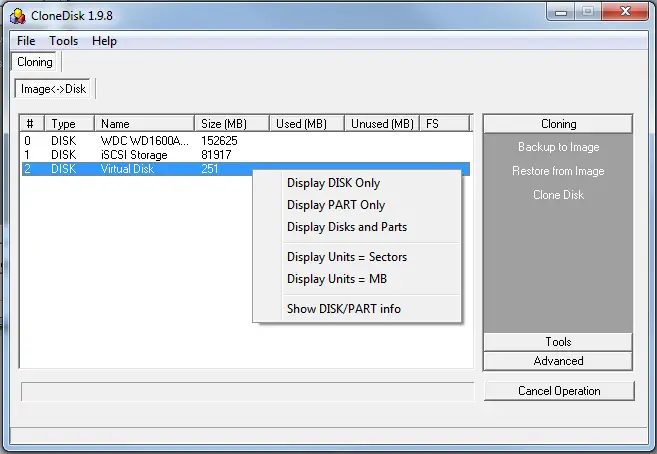
CloneDisk
Platform: Windows
Type: Portable
Price: Free
Main Features
- Backup hard drive to image
- Clone complete disk
- Set volumes online or offline
- Format, extend, shrink or securely wipe volumes
- Make the disk read-only or read-write
- Manage RAW, VMDK and VHD file formats with CloneDisk
Limitations
While all the features seem perfect for a disk cloning utility, CloneDisk does not have any help wizard or even tool tips to get help from. It is intended for expert users or administrators who know the ins and outs of disk management.
CloneDisk needs to be run as administrator in Windows otherwise it will give invalid handle error.
Competition
If you are not comfortable with CloneDisk, you may try other similar software which will be easier to use. Just make sure that you select the software which has the functionality you need.
DriveXML
DriveXML is by far the best cloning tool which is also free. It will also let you create a live CD with which you can backup, clone or restore your drives easily. The interface is not all that user friendly but it gets the work done fine.
Maricum Reflect
Maricum Reflect is another great cloning tool which is free for personal use. It lets you backup or clone complete hard drives. The backups can be opened through Windows Explorer. The best thing about Maricum Reflect is that it supports RAID volumes.
Paragon Backup and Recovery
Paragon Backup and Recovery is another wonderful tool which comes with complete support for Windows 8.1. Paragon Backup and Recovery lets you create complete backups as well as differential backups of complete hard drives. Its disaster recovery options include restoring complete hard drive, partitions or only the files which are needed. You can also use restore with shrink feature which will restore only the actual used blocks of the backup image. It can also create bootable USB flash drive as well as Linux/DOS bootable environments for recovery purposes.
What is your favorite way of backing up data of your computers?
Subscribe to:
Comments (Atom)